Dijigram Documentation
Everything you need to set up Dijigram and get the most out of chatting, calling and secure OTPs.
Getting Started
Dijigram is available for Android devices on the Google Play Store. To install it:
Download the app
Open the Dijigram page on Google Play or scan the QR code on our website with your phone camera.
Install
Tap Install and wait for the download to finish.
Open Dijigram
Launch the app and allow the permissions you're comfortable with (contacts, notifications, microphone and camera are needed for the full experience).

Requirements: an Android smartphone, an active mobile number to verify your account, and an internet connection (Wi-Fi or mobile data).
Account & Profile Setup
Enter your mobile number
Select your country code and type your phone number.
Verify with a one-time code
Enter the verification code we send to your number to confirm it belongs to you.
Set up your profile
Add your display name, an optional profile photo and a short "about" line. You can change these anytime in Settings > Profile.
Messaging
To start a conversation, tap the new chat icon and choose a contact. In any chat you can:
- Send text messages and emojis
- Record and send voice notes
- Share photos, videos and documents using the attachment icon
- Long-press a message to reply, copy, forward or delete it
With your permission, Dijigram securely checks your phone contacts to show which friends already use the app. You can also start a chat by entering a mobile number directly.
Group Chats
- Tap the new chat icon and choose New Group.
- Select the contacts you want to add.
- Give the group a name and an optional photo, then tap Create.
Group admins can add or remove members, edit group info and assign other admins from the group settings.
Voice & Video Calls
Open a chat and tap the phone icon for a voice call or the camera icon for a video call. During a call you can mute your microphone, switch to speaker, turn your camera on or off and flip between front and rear cameras.
For the best call quality, use a stable Wi-Fi or 4G/5G connection.
Receiving OTPs
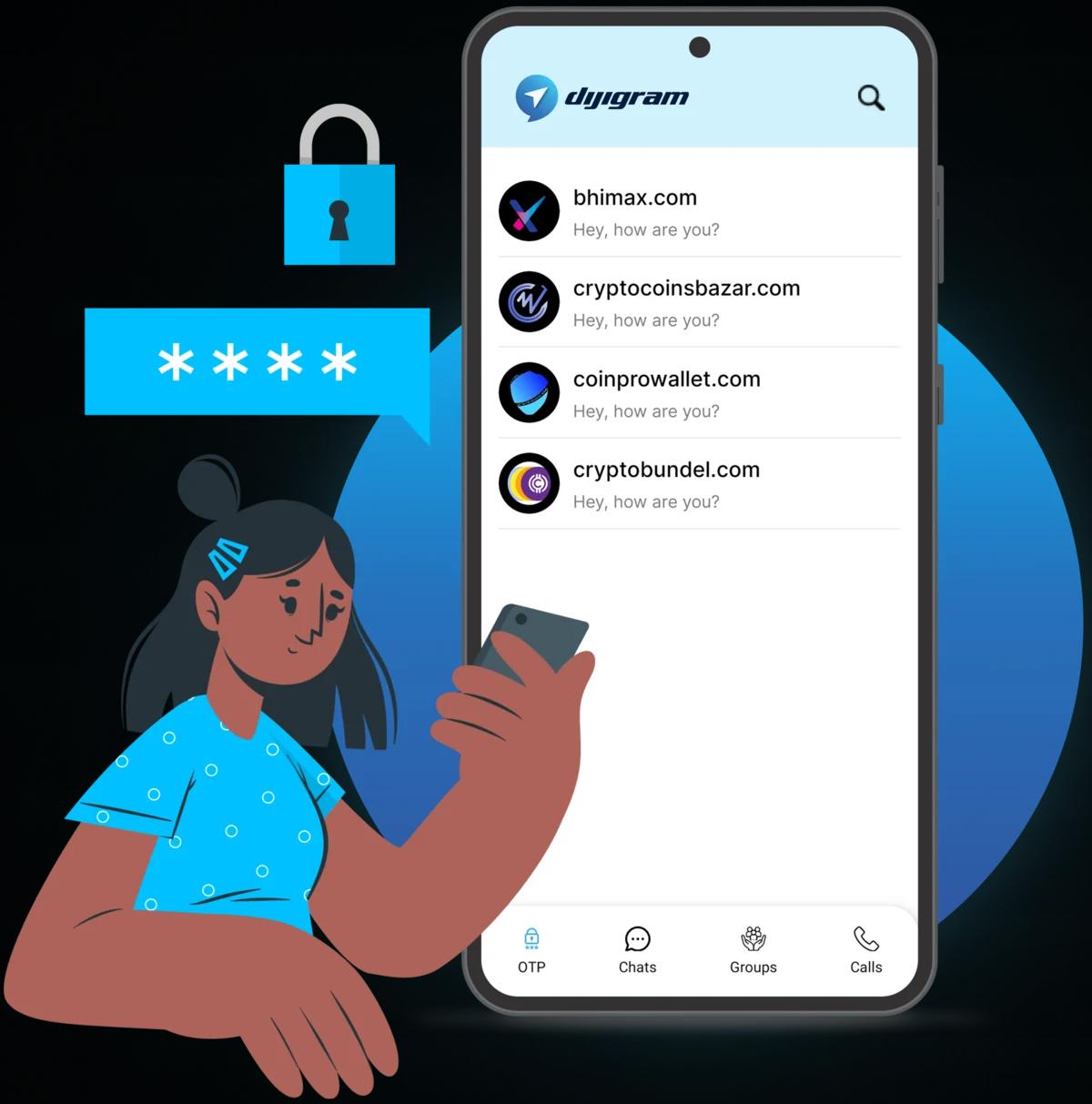
Dijigram delivers One-Time Passwords instantly for logins, payments and identity checks. OTPs appear in your Dijigram inbox and are protected with encryption.
- Never share an OTP with anyone — Dijigram staff will never ask for it.
- OTPs are time-limited; use them promptly.
- If you did not request a code, ignore it and consider changing the password of the related service.
Privacy & Security
- Block or report: open a chat, tap the contact's name and choose Block or Report.
- Profile visibility: control who can see your photo and info in Settings > Privacy.
- Delete your account: go to Settings > Privacy > Delete Account. This is permanent.
Read our Privacy Policy and Terms of Service to learn how we protect your data.
Notifications
Go to Settings > Notifications to choose alert sounds, vibration and preview settings. To mute a single chat or group, open it, tap its name and select Mute.
Troubleshooting
I didn't receive my verification code
Check that your number and country code are correct, make sure you have network signal, wait a minute and tap Resend.
Messages or calls are not connecting
Check your internet connection, update Dijigram to the latest version from Google Play and restart the app.
Notifications are not showing
Make sure notifications are allowed for Dijigram in your phone's system settings and that battery optimization isn't restricting the app.
Still need help? Visit the FAQ, contact us or email support@dijigram.com.
Ready to Get Started?
Chat, call and receive OTPs securely — all in one free app. Download Dijigram from Google Play or scan the QR code with your phone.